Business Card Proof Checklist: A 15-Minute Review Before You Print
A business card proof deserves a separate review, even when you created the design yourself. Familiarity makes it easy to read what you meant to write instead of what is on the page. Set aside fifteen uninterrupted minutes, open the exact file scheduled for printing, and work through the checks below.
Treat the timing as a way to organize your attention. If you find an error or have a question for the printer, stop the approval process and resolve it. The goal is a checked proof, not a rushed sign-off.
Before the timer starts
Gather the printer’s current template or artwork instructions, the order summary, and a reliable source for your contact information. Have the front and back of the proof available. If several people have edited the card, choose one person to collect corrections and approve the final version. Otherwise, a corrected phone number can disappear when someone uploads an older file.
Check every contact detail in minutes 0 to 3
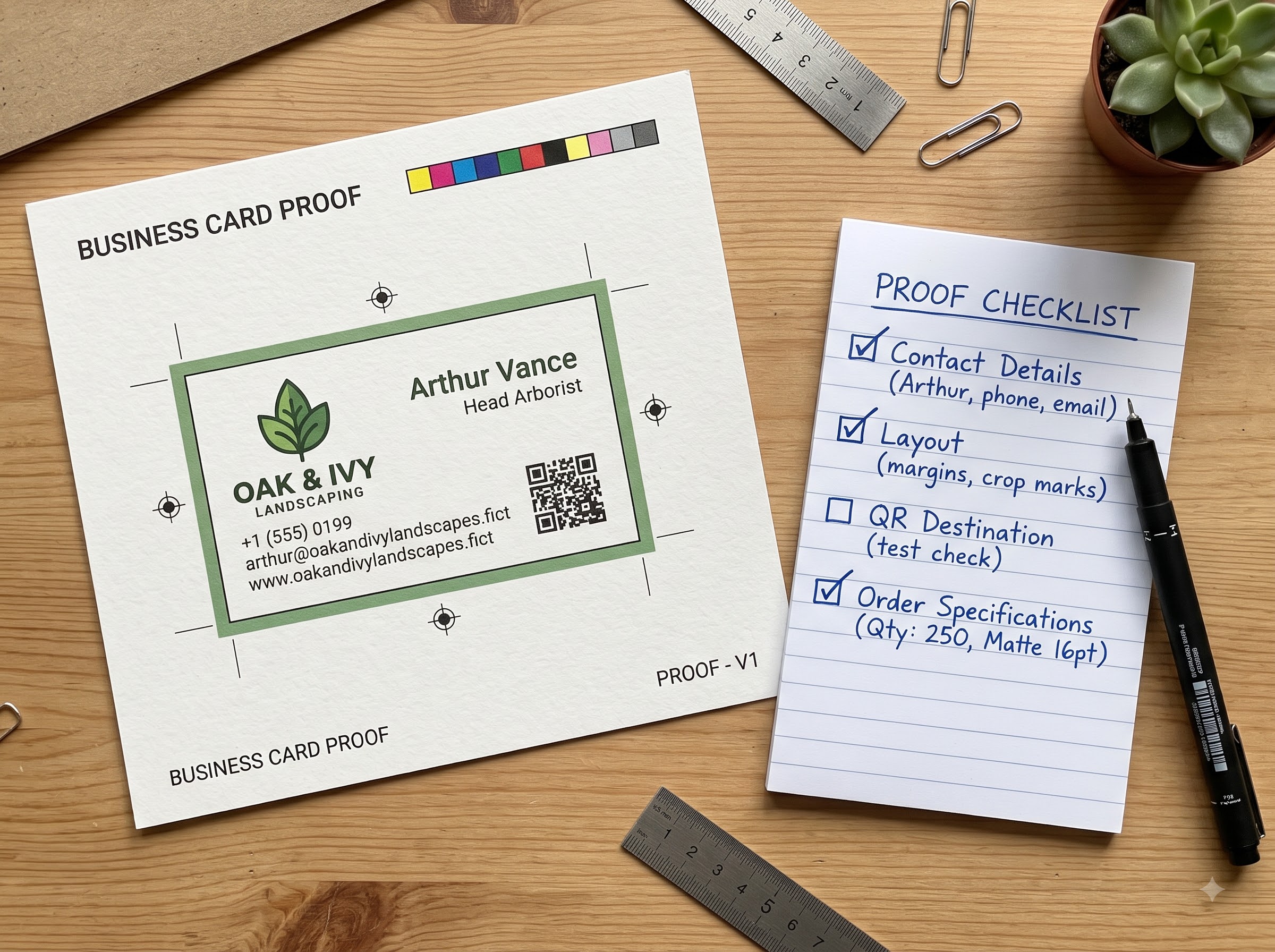
Read your name, business name, role, phone number, email address, and website one character at a time. Check spelling against the source information rather than relying on memory. Pay particular attention to repeated letters and similar-looking characters.
Use the details, too. Type the printed website address into a browser. Call the listed number when practical. Start an email to the printed address and confirm that it is the intended inbox. If the card includes a location, check that it is the place customers should visit. An accurate mailing address may still be the wrong destination for an appointment.
Check the intended next step in minutes 3 to 6
Look at the card as someone who has just met you. Can they identify your business and understand the next useful step? A short role or service description can help when the business name alone is unclear.
Choose a primary action that fits how you work, such as calling for an appointment or viewing a portfolio. Check that any instruction matches its destination. A QR code labeled “View our work” should take visitors to examples of your work, not leave them searching a general homepage. Remove claims or offers that have not been confirmed for this print run.
Review the size and layout in minutes 6 to 9
Print the proof at its intended finished size if you can. A design that feels spacious on a large monitor may be harder to read in your hand. Check the smallest text in ordinary lighting, including any information on the reverse.
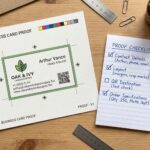
Compare the artwork with your printer’s requirements for trim, bleed, and the safe area. Follow those specifications rather than a generic measurement found online. Keep important content away from the cut edge. Review both sides for alignment and orientation, and confirm that no text or image is missing. If color matching is important, ask the printer what proofing option is appropriate; a screen preview alone is not your approval standard.
Follow the QR code through in minutes 9 to 12
Scan the QR code from the actual-size printout, not only from an enlarged image on your monitor. Try a second phone if one is available. Confirm the full destination address and check that the page belongs to the intended business.
Continue beyond the first page. Tap the booking, contact, download, or portfolio link the visitor is meant to use. Check that a form can be completed and that the confirmation makes sense. Use test details, and avoid creating an unwanted real appointment or order. If you use a service to manage the code, confirm who controls the account and what keeps the link active.
Match the proof to the order in minutes 12 to 15
Compare the approved artwork with the order summary. Confirm the quantity, card size, paper or stock, finish, number of printed sides, and delivery details. Make sure the file you checked is the file being submitted.
Save the approved version with a clear name, such as “BusinessCard_Approved_2026-10-30.pdf,” and keep the approval message with it. If anyone changes the file afterward, review the affected details again. A layout adjustment can move a QR code or push text closer to the edge.
Before you click approve, ask one final question: could someone use this card to reach the right person and take the intended next step? If the answer is uncertain, resolve that specific issue before printing.
For more practical business card and small business guides, visit blog.businesscardjunction.com.